Have your loan details handy
Make sure you have your loan figures ready before you begin. You can find them in your loan statements or your banking app, or by contacting your lender.
Every mortgage
- Property address, suburb, state and postcode
- The amount you borrowed (starting principal)
- Your interest rate
- Loan term in years, and the month and year it started
- How often you pay: monthly, fortnightly or weekly
Already making payments? Also
- Your current loan balance (current principal)
- Your current offset account balance, if you have one
- Total interest paid so far (optional)
- Total extra repayments made so far (optional)
Download, sign in and find your way around
Download the app and sign in with Apple
Download Pay It Down free from the App Store, then tap Sign in with Apple. There's no separate password to create.
Before you sign in you can choose whether to receive marketing emails. You can change this any time in the Account tab.
Free · Available only in Australia
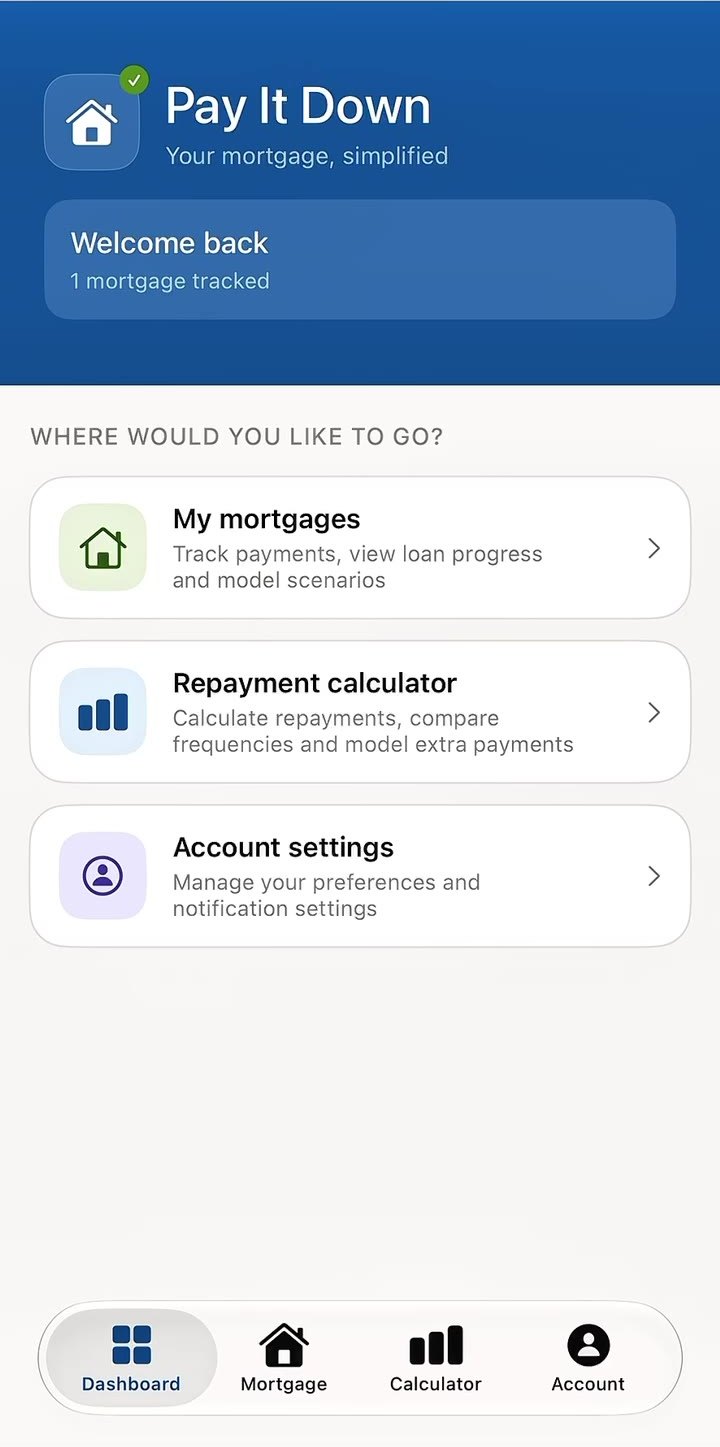
Get to know the Dashboard
After you sign in you land on the Dashboard. It shows how many mortgages you're tracking and three places to go:
The bar at the bottom of the screen switches between Dashboard, Mortgage, Calculator and Account.
Set up your loan in four short screens
Open My mortgages and tap to add a mortgage. The bar at the top shows how far through you are. Tap Continue to move on, the back arrow to go back, or Cancel to stop.
Choose the type of mortgage
Pick the option that matches where your loan is up to, then tap Continue.

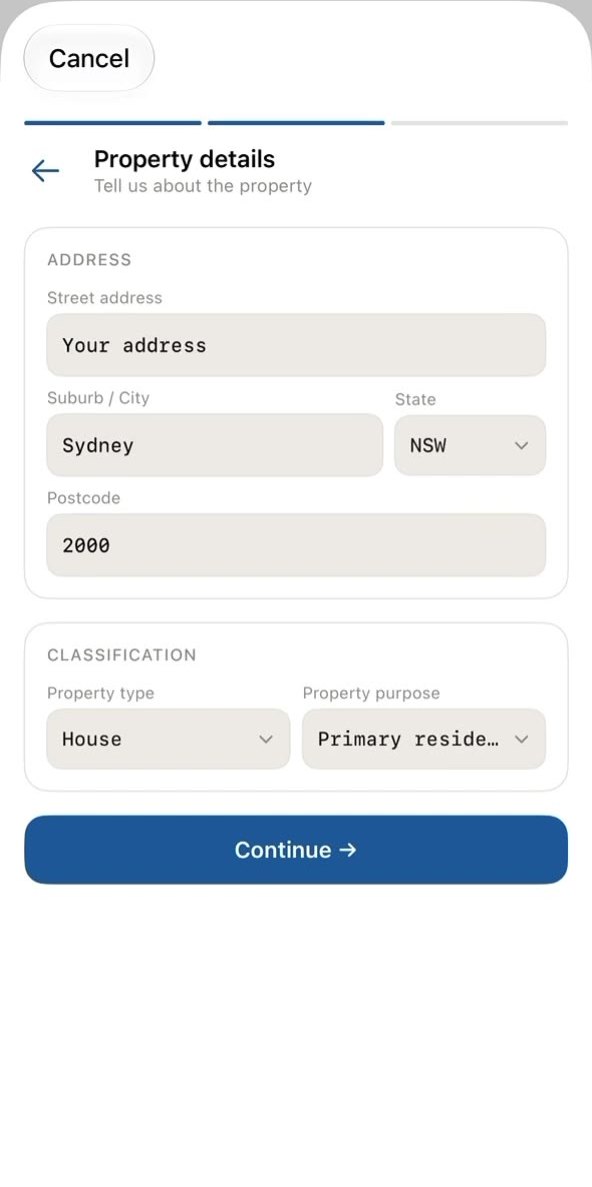
Enter your property details
Tell the app about the property. The address is used as your mortgage's name so you can tell loans apart.
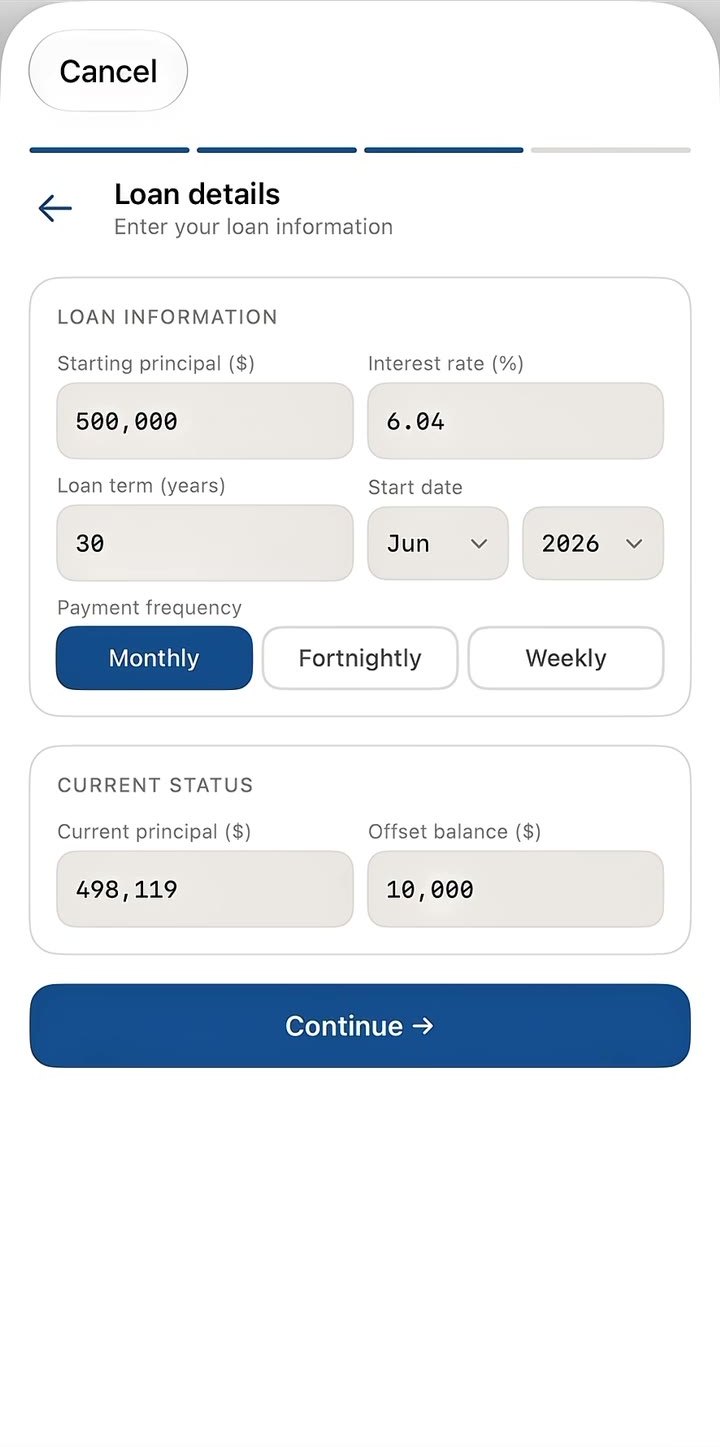
Enter your loan details
These numbers drive every calculation in the app, so be sure to enter your details accurately.
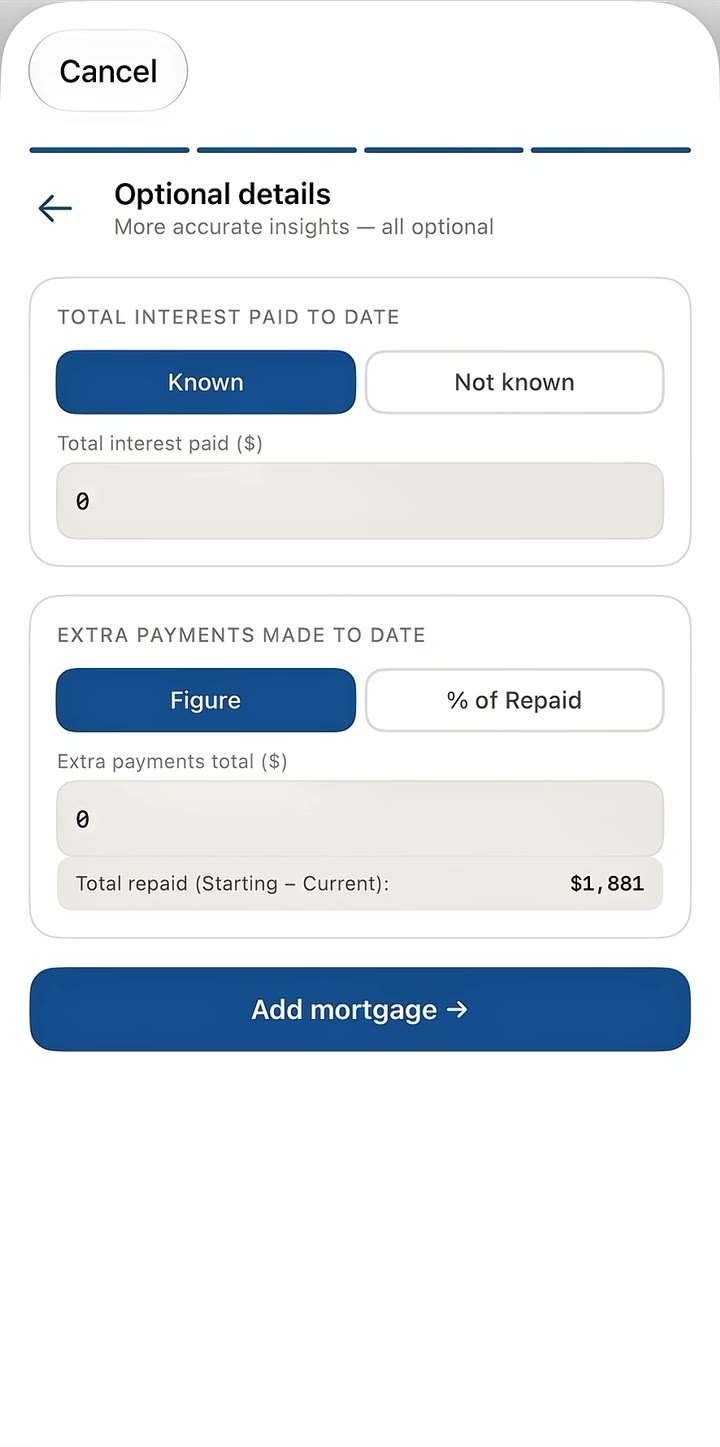
Add optional details, then finish
This last screen adds your loan's history so your insights are more accurate. Everything here is optional. Tap Add mortgage when you're done.
What your Summary page shows
Once your mortgage is added, it opens on the Summary tab. Use the tabs at the top to switch between Summary, Payments and Progress.
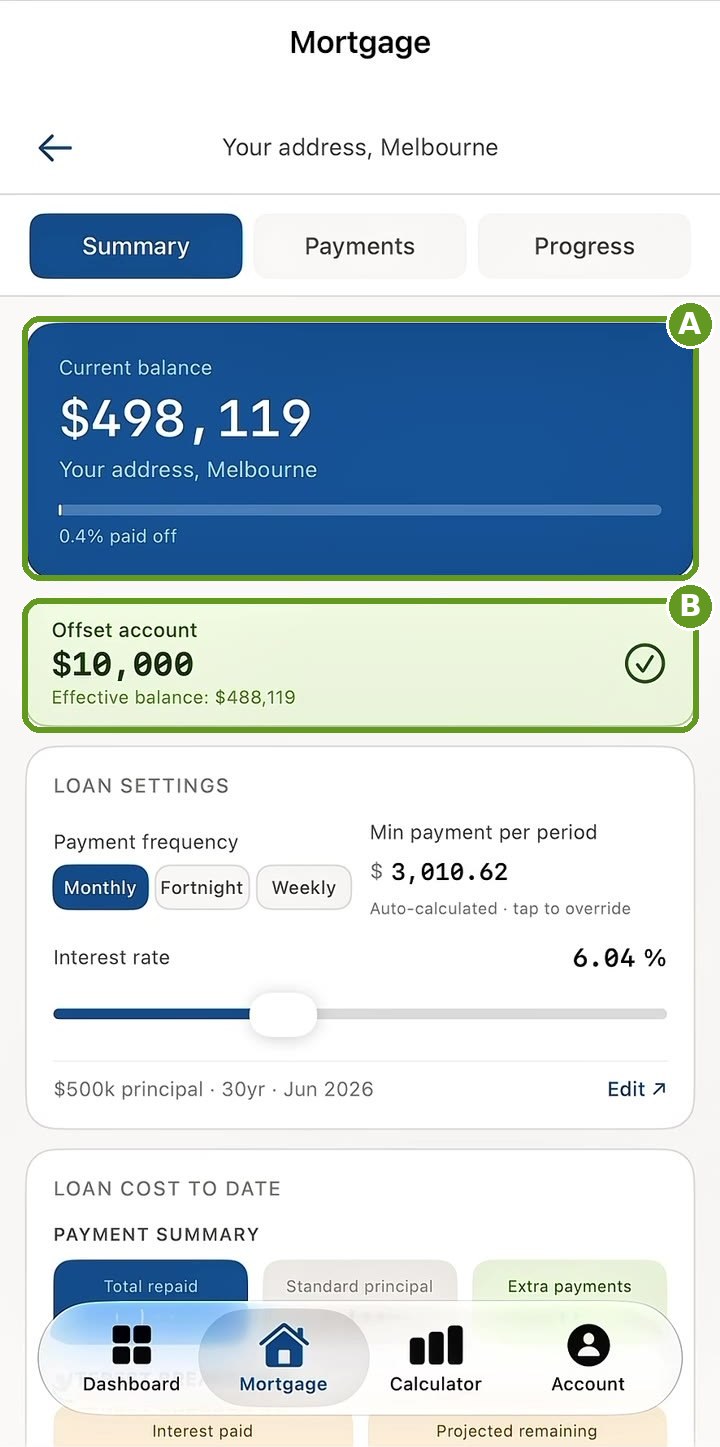
Check your balance and offset
The top of the Summary tab shows where your loan is up to. The letters match the boxes on the screen.
Offset accounts work differently from lender to lender. Your lender can confirm what applies to you.
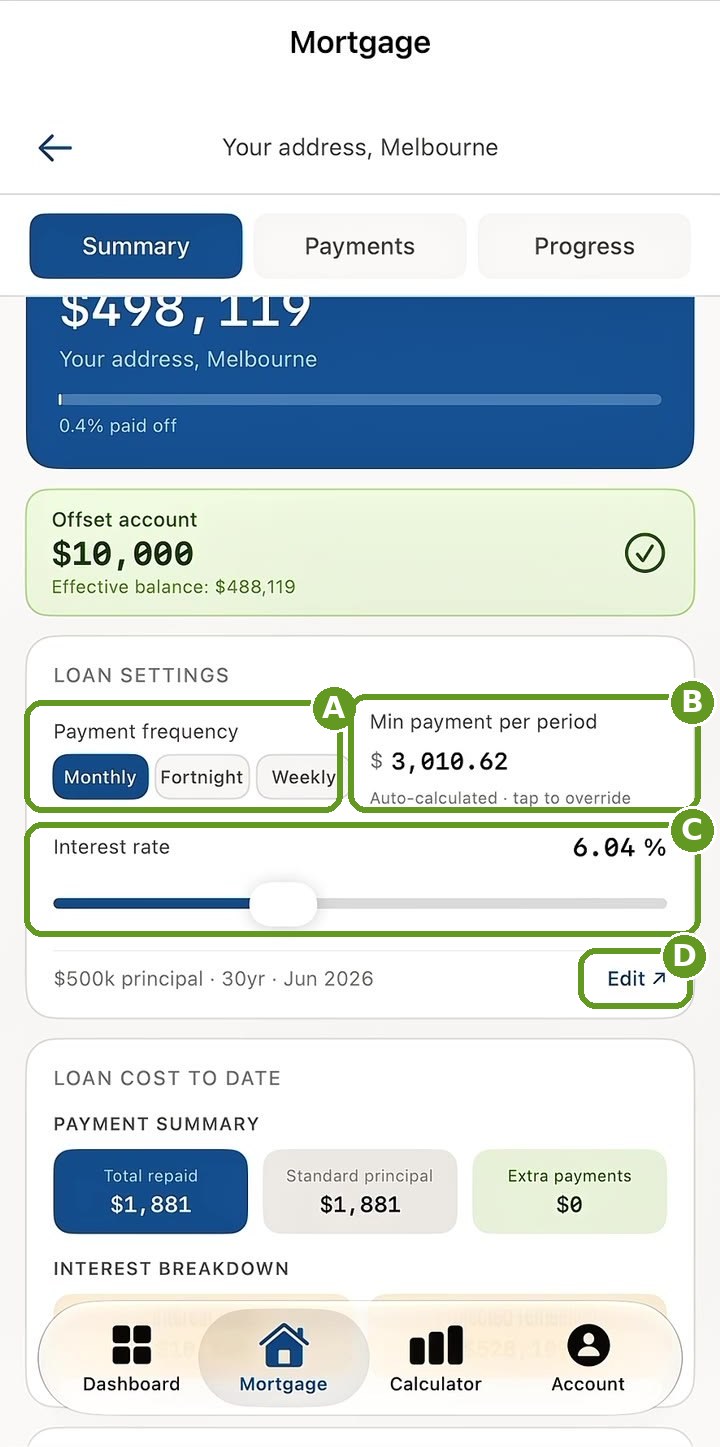
Adjust your loan settings
Scroll down to Loan settings to change things as your loan changes.
Understand your loan cost and insights
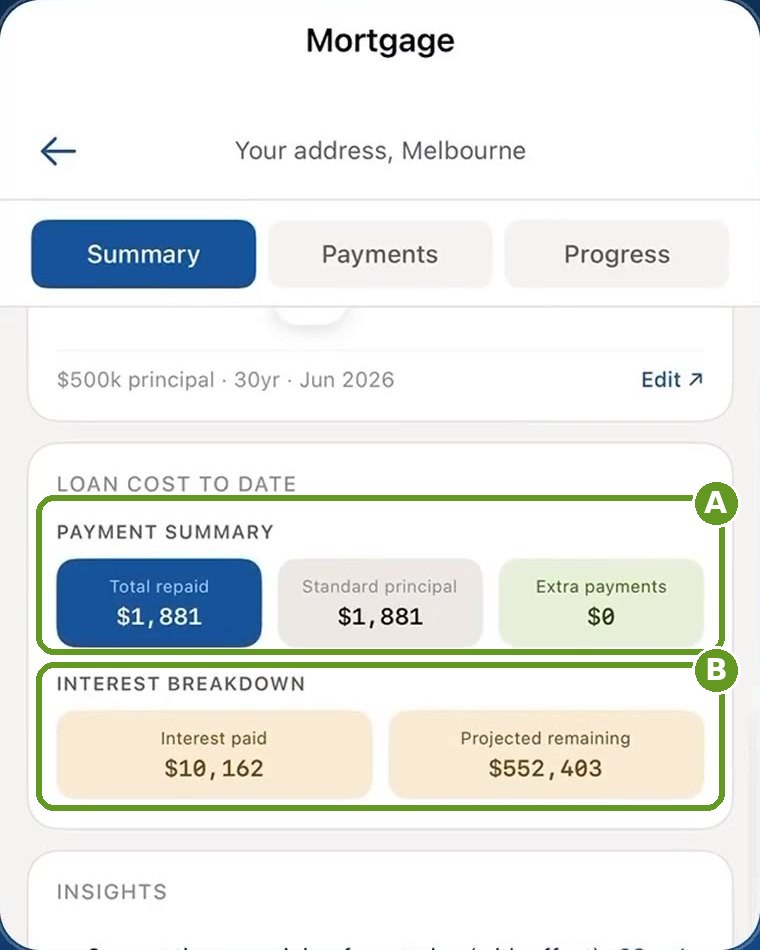
Further down the Summary tab, two sections break down where your money has gone and how long your loan has to go.
Loan cost to date
What your loan has cost you so far, and the interest still to come.
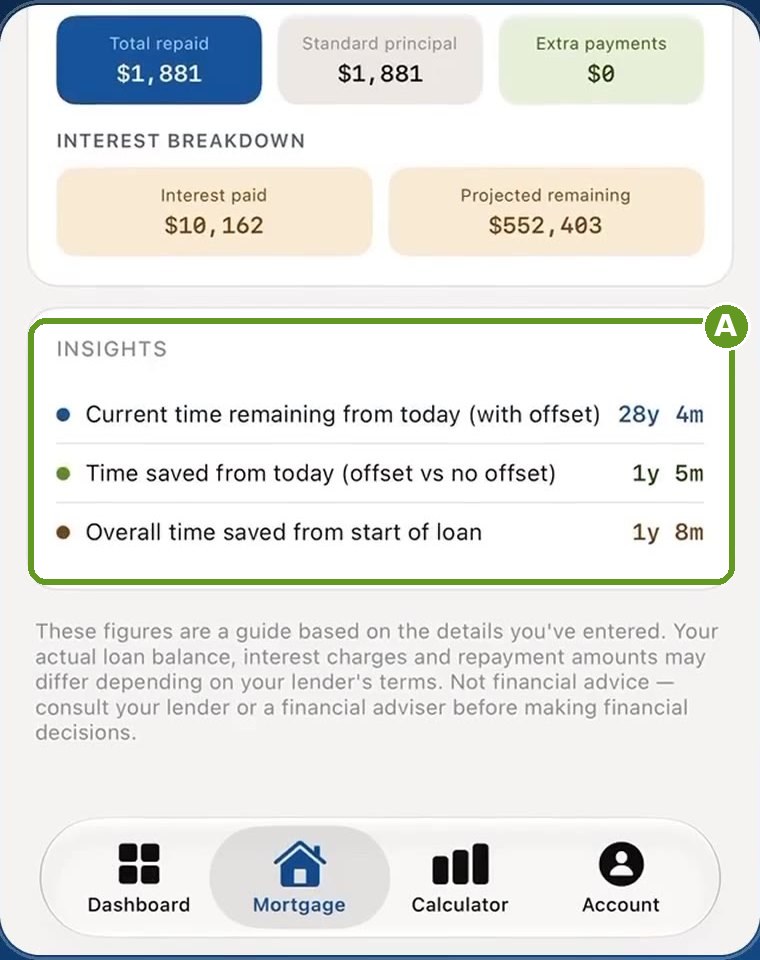
Insights
Time-based estimates worth keeping in mind as you track your loan.
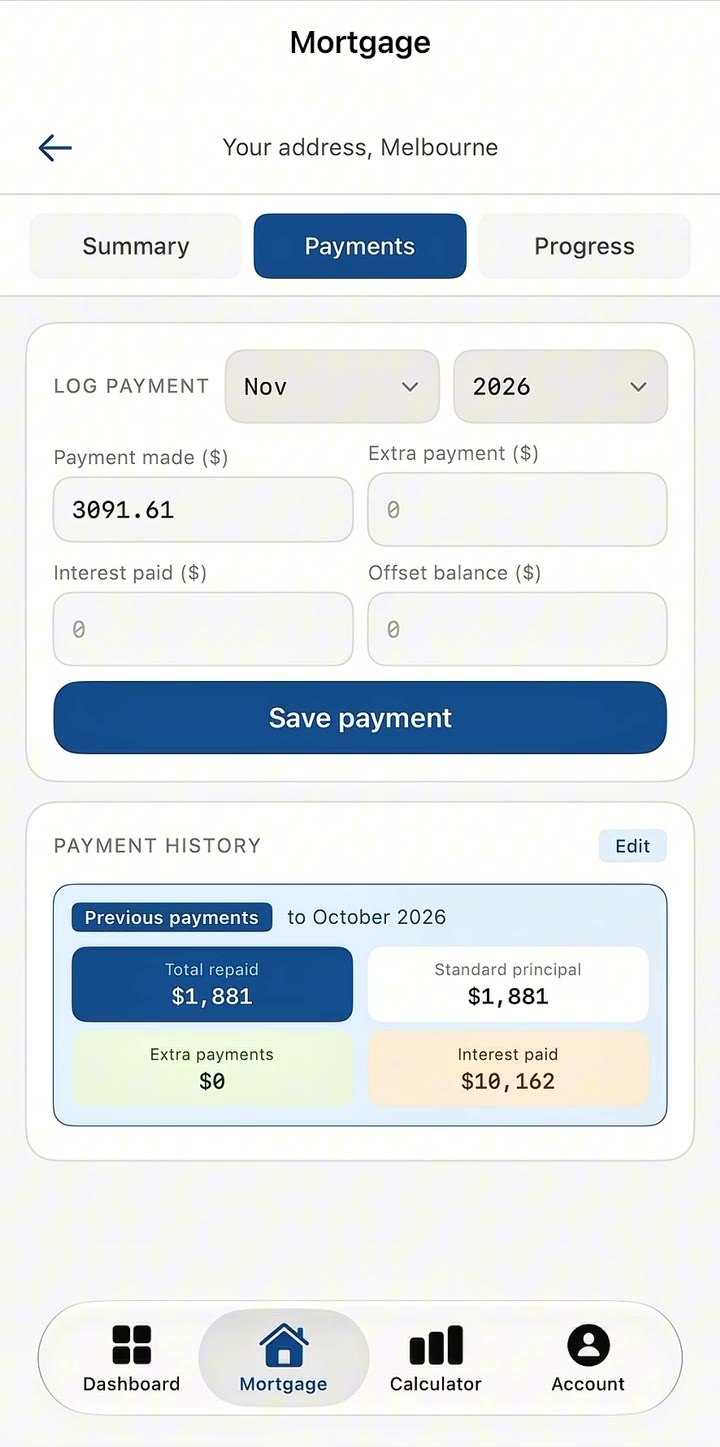
Log each month's payment in under a minute
Logging payments keeps your balance, interest and insights up to date. You log one entry per month, even if you pay fortnightly or weekly. Turn on reminders and the app will nudge you when it's time.
Open Payments and fill in the month
Open your mortgage, tap the Payments tab, then pick the month and year at the top of Log payment and fill in the four boxes:
Save it and check your history
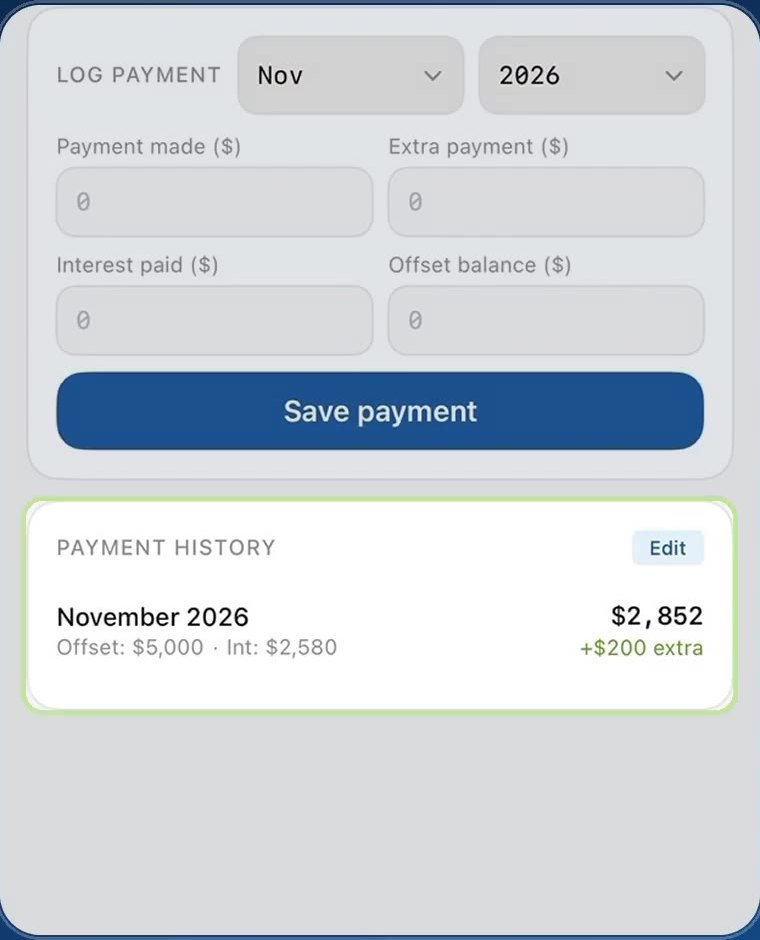
Tap Save payment. The entry appears in Payment history with the amount, any extra, your offset and the interest for that month.
Switch back to the Summary tab and your balance, loan cost and insights update straight away.
Fix a payment you've already logged
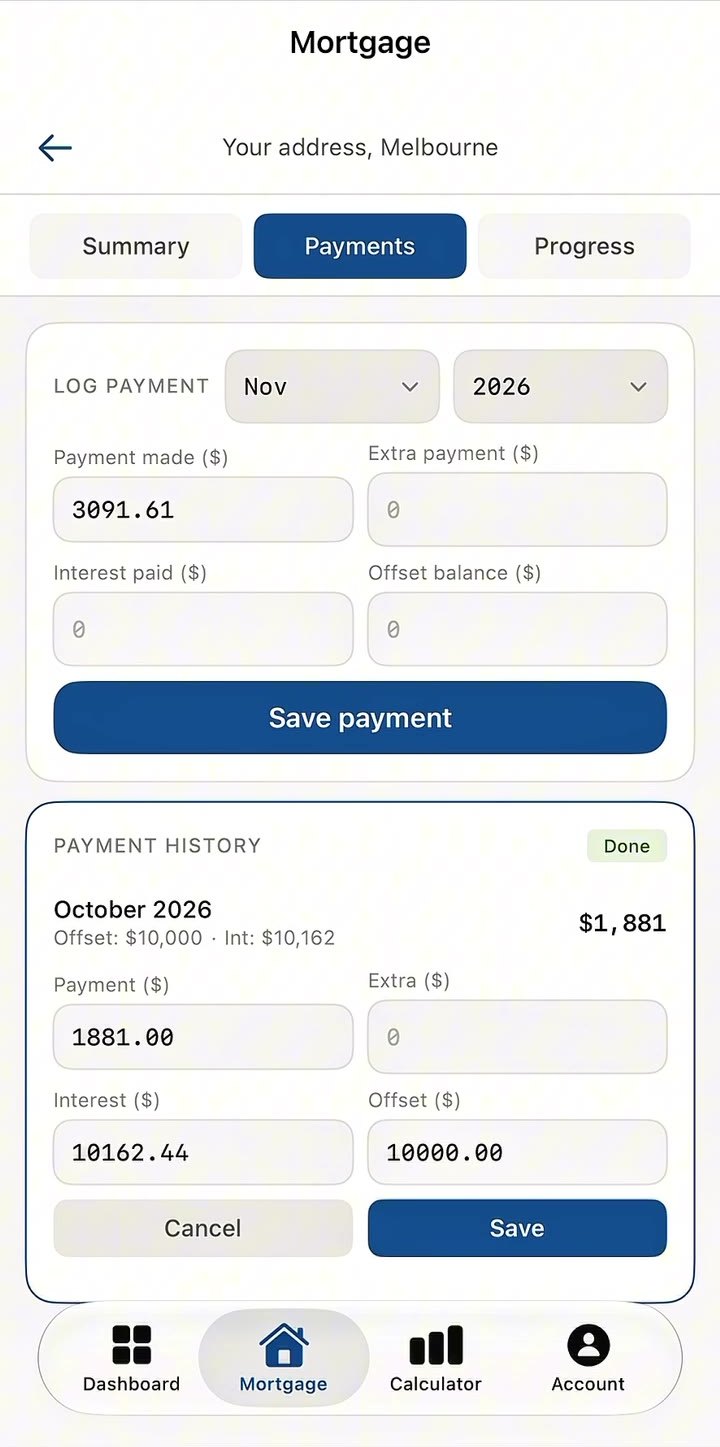
Made a typo? In Payment history, tap Edit, then tap the month to change it.
- Update the Payment, Extra, Interest or Offset amounts.
- Tap Save to keep your changes, or Cancel to leave it as it was.
- Tap Done to finish editing.
Explore “what if” scenarios
The Progress tab is where you model your mortgage. It shows two paths side by side: where your loan is headed with no changes, and where it could go if you add extra repayments or grow your offset.
Model your progress
Open your mortgage and tap the Progress tab. Move the sliders and everything on the tab updates as you go.
The four stat tiles
At the top of the tab, four numbers sum up your projection at a glance.
The chart
Below the tiles, the chart plots two balance lines year by year, from today until payoff.
The projection inputs
Use the sliders to try different scenarios.
Still need help?
Check the Support & FAQ page, or send us a message and we'll get back to you as soon as we can.